


Blog Tutorial – How to add PrintFriendly Button to Blogger Posts
Would you like your readers to be able to print your blog posts, your recipes or tutorials, in an easy and simple way, without printing your ads and graphics?
Then you need to add the PrintFriendly button to your blog posts!
PrintFriendly strips out ads and other clutter as well as formats the page for optimal printing. It also gives you the option of removing individual elements you might not want.
I just added the button two weeks ago to my blog, so now you can print out my posts easily!
You can see it here in action, below one of my posts:
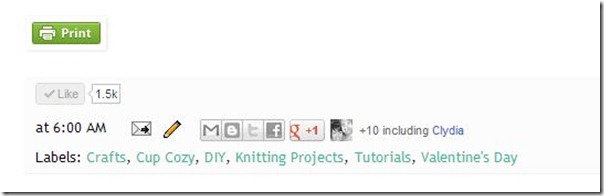
When you click on the button you can print my recipes, or tutorial instructions easily!
This is what you will see when you click on the green Printfriendly button:
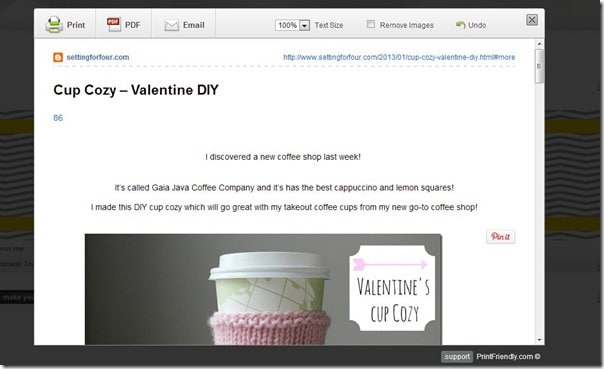
By mousing over certain sections of the screen above you can delete elements too, just click on them to delete…so I could delete the first three sentences for example and only print out the specific images and sentences I want! Saves paper and ink!
Click on the Print button in the top left corner to get this:
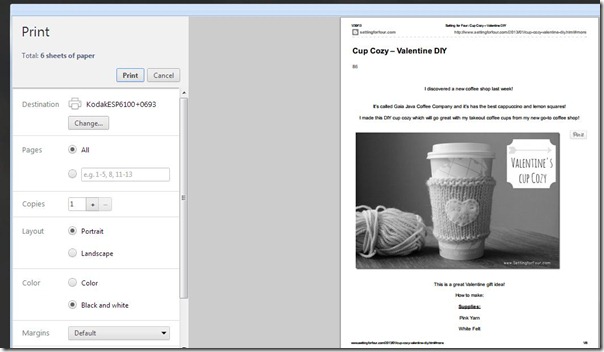
Then click print to print it out!
You can also turn your post into a PDF by clicking on the PDF button at the top:
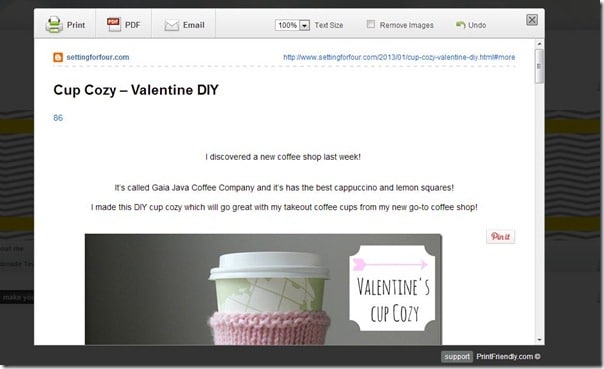
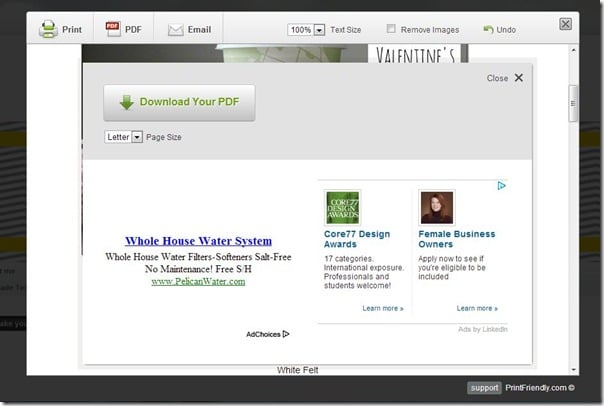
This window then appears and you can make the post into a pdf!
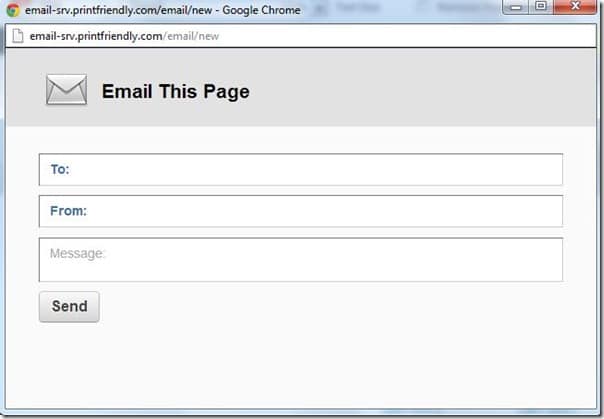
The third action you could take is to click on the Email button to email the post page to someone! When you click on the Email button this window appears:
How to add the Printfriendly button to your blogger posts:
1. Go to Printfriendly.
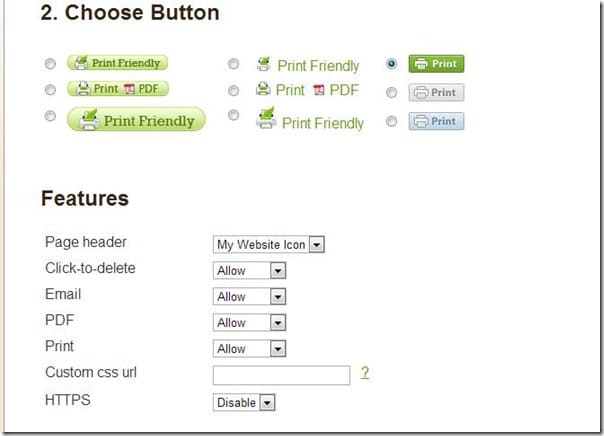
2. Choose your Site (Blogger) then Choose your button style:
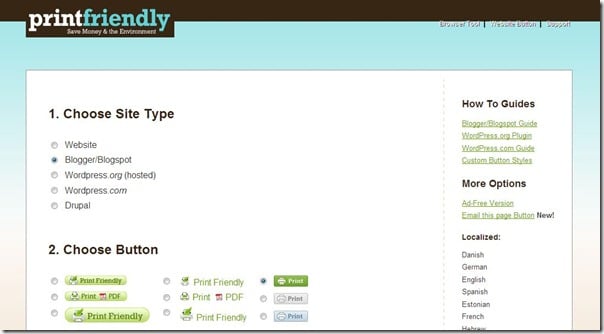
3. Choose your features (I didn’t change any of these and left them as is…)
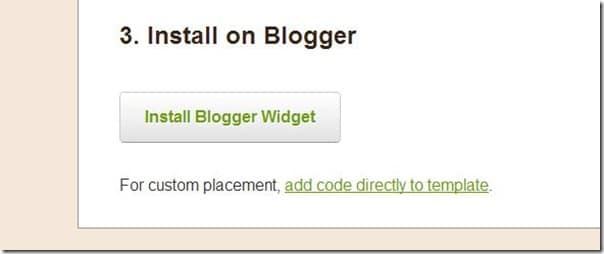
4. Now get the button code click on ‘add code directly to template’ (I didn’t use the ‘Install Blogger Widget” because I wasn’t sure where the widget would place the button and I wanted to specifically add it to the end of my posts…):
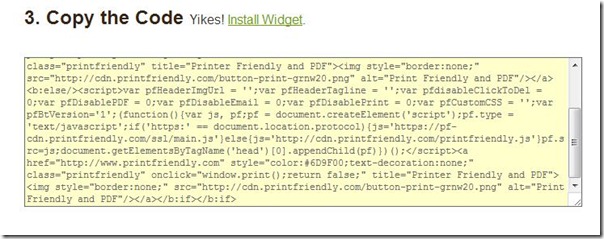
5. Copy the button code provided (ignore the ‘Yikes!’ comment):
6. Back up your blog before proceeding!! This is crucial!
Go to your Blogger Template and select ‘HTML’
7. Click ‘Proceed’ when the warning message appears.
8. Put checkmark on ‘Expand Template Widgets’ box.
9. Find this code in your template: <data:post.body/>
An easy way to find this code is to click Control ‘F’ and that will open a ‘Find’ box where you can copy and past the code <data:post.body/> and the code will be automatically highlighted and located for you!
**Be Careful: There’s two versions of <data:post.body/>. Use the first (web) not the second (mobile). **
10. Paste the Printfriendly Button code above the <data:post.body/> if you would like the button to appear before the post body
…or
11. Paste the Printfriendly Button code below the <data:post.body/> code if you would like the button to appear below the post body….. like I did.
12. Click ‘Preview’…does everything look ok?
13. Click ‘Save Template’.
The PrintFriendly Button has been added!
Thank you so much for posting this Heather! I thinks it’s a great added feature and it’s for Blogger – YAY!!
Welcome and yay!! Hope it helps!!
Well, that is just too cool! I’m going to pin this for future use!
Cool new header! Informative post too! 🙂
Hey chica, can I feature this on So You Wanna Be a Blogger? great tutorial!
Sure!
So cool! I had no idea this was even possible, thanks for the tip :o)
Welcome Laura Beth!!
Very cool! I have to pin this! I would love to add this to Smart School House!
THanks for pinning!!
it worked!! awesome tutorial, thanks!!!
Melanie
Fantastic Melanie!! Yay!! You are so welcome!!
Heather, that is so clever! When I get some time, I’d like to play around with this. So helpful, thank you! Sharon
Glad you enjoyed the tute Sharon!
thanks so much, worked great! have a nice day!
eva
Glad you installed it Eva! 😀
This was so helpful! Now I have a print button too! Thanks for sharing this tutorial!
When I put this on my blog. I also have the hover over photo pin it button and it shows up over my print button. is there any way to fix this?
Karissa: I removed my hover over photo pin it button because it was causing all kinds of problems for me…sorry I don’t know how to fix that!
Heather,
Thanks for your tutorial. I have been trying to add the print button and have a problem. I do not get the Proceed button when warning message appears. I have a screen that has a “save template” button already highlighted. But when I click on it, nothing happens. I backed up on the previous screen and thought maybe that was my problem. I deleted the saved template, but it still did nothing when I clicked on the save template button and I still do not get the proceed option/screen.
Hope you can help me.
Thanks,
Patricia
Patricia: Blogger has changed the look of the template section – that’s why you don’t get the “proceed’ warning…first of all back up the template you already have (so important!!) then go to template – edit html – you’ll see your html in a window – make sure the cursor is in the html somewhere. Then proceed to the tutorial starting here:
9. Find this code in your template:
An easy way to find this code is to click Control ‘F’ and that will open a ‘Find’ box where you can copy and past the code and the code will be automatically highlighted and located for you!
**Be Careful: There’s two versions of . Use the first (web) not the second (mobile). **
10. Paste the Printfriendly Button code above the if you would like the button to appear before the post body
…or
11. Paste the Printfriendly Button code below the code if you would like the button to appear below the post body….. like I did.
12. Click ‘Preview’…does everything look ok?
13. Click ‘Save Template’.
The PrintFriendly Button has been added!
Hope this helps!!
Thanks, for getting back to me so soon. I followed your instructions, but the code isn’t in my template.
Any suggestions of what I need to do?
Thanks,
Patricia
Thank you Heather 🙂
Your directions were pefect.
Lynnie
I’m with Patricia. I can get it to load on whole blog but not just on recipes or places I want. Please help. Your instructions are wonderful not sure what I am doing wrong?
Gee Jennifer – I don’t know what may be causing that…
Thanks Heather, this is awesome.
You’re welcome Marcie! Glad you find it helpful!
Heather excellent tutorial! Best I have found on the web!
I CANNOT get this to work regardless if I put above the post.body or below…it just doesn’t want to show up. Do you have any advice?
http://www.pinkspantry.com
Hi Erinn! Did you add it under the first in your html?? There are two of those pieces of code in your template – you need to find the first one and follow the instructions….otherwise I’m sorry I don’t know what may be not working!
Will backing up my blog delete all the settings?
Hi Aimee – no it won’t delete your settings…it’s like making a copy of it and good to do on a routine basis!
Thank you for such a clear and helpful tutorial! It took me a while but I figured out what I was doing wrong. I saw that there were a few others that thought the button was not working and I thought perhaps the issue I was encountering might be the same for them. I followed the instructions on a couple of my blogs but it didn’t seem to be working completely. But then I finally had an ah-ha moment. The button (I actually used the widget tool and it worked fantastic!) doesn’t show up at the bottom of every post on a page (like the other social media icons do). It shows up when you select a single post. The button will appear at the bottom of the first post on a page but not the rest which led me to believe I was doing something wrong. If you use the widget it shows up in the blog “layout” but is only visible at the bottom of the first post on a page and then at the bottom of any post selected and brought up as a single page. Does that make sense? Thanks again!!
not seeing the ‘expand widget template’ button. I haven’t edited my blog in awhile and it must’ve changed…
got it to work but had to follow the directions on the print friendly web page because pasting it after data post body didn’t work…?!?! I posted it in line 5, right after ‘head’
Oh I’m so glad you have it working Shiloh! THanks!!
I tried many methods and followed your tutorial through and through, but the button is still not showing up. Any more tricks? Thanks for the clear tutorial though!
I followed your tutorial through and through, but the button is still not showing up. Any more tricks? Thanks for the clear tutorial though!
For anyone who has gone through my tutorial and have the printfriendly button working – congrats!! For those that are encountering problems – I really wish I could help but I don’t know of a solution. I suggest you email printfriendly support to ask for their assistance.
This is really a wonderful post for me. I am going to write post “how to start a blog” I will include this information. Thanks for your information.
I have tried a 1000 times and cannot get the button to show up anywhere on my blog. Please help. thanks
Oh dear Marty!! I really wish I could help you! I really don’t know why it wouldn’t be working! Best of luck in figuring it out!
Thanks for sharing! Will try it tomorrow